
How to Show Slides During a Video Chat Without Awkward Screen Lag
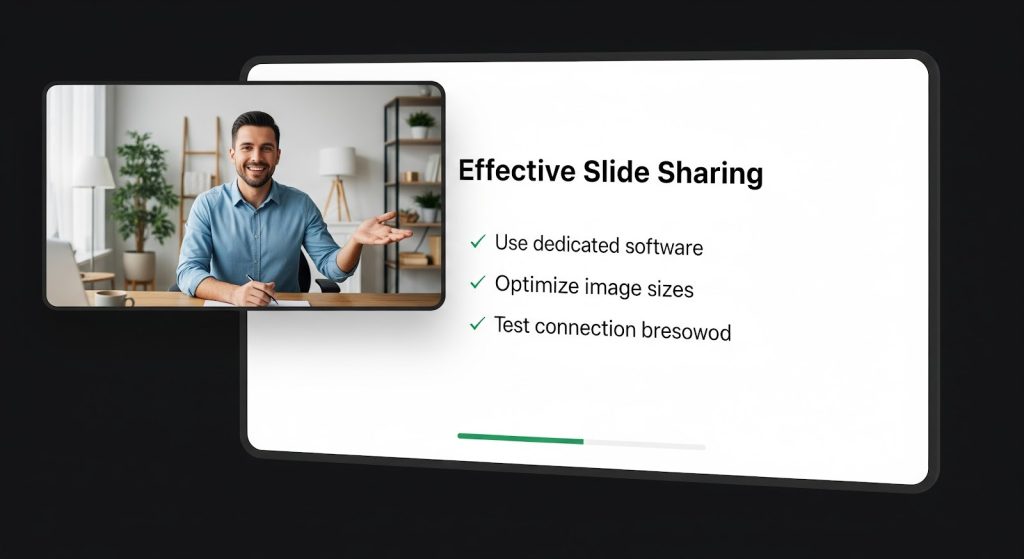
If you’ve ever tried to share slides on a video call and suddenly felt like you were broadcasting from a toaster… welcome to the club.
One minute you’re confident, ready to present. The next minute your screen share is stuttering, your voice is out of sync, and your beautifully designed slide deck looks like a blurry meme someone screenshotted in 2012. Meanwhile, your audience is doing that polite nod that screams, “I can’t read anything but I’m trying to be nice.”
The good news: you don’t need fancy gear or a “creator setup” to present smoothly. You mostly need a better workflow.
This guide is the exact approach I use when I want slides to look clean and readable, without the “awkward screen lag” vibe. It works for Zoom, Google Meet, Microsoft Teams, Discord calls, and even casual browser-based video chats when you’re trying to show something quickly.
Why slide sharing gets laggy (even when your internet is “fine”)
Video calls are sensitive. Screen sharing is even more sensitive. You’re basically asking your device to do three heavy things at once:
- Encode your camera video
- Encode your microphone audio
- Encode your screen (often high resolution, changing constantly)
Now add one more thing: if you’re presenting a deck with animations, embedded videos, giant images, or a hundred open tabs in the background, your computer starts sweating immediately.
Lag usually comes from one of these:
- Wi-Fi instability (jitter, not speed)
- CPU/GPU overload (your device can’t encode smoothly)
- Sharing the “wrong” thing (entire screen instead of a single window)
- The deck itself (huge images, video embeds, fancy transitions)
- Background bandwidth hogs (cloud backups, downloads, streaming)
Once you know what causes it, you can fix it pretty fast.
The quick “pre-flight” checklist (2 minutes, saves you embarrassment)
Before you start presenting, do this. It’s boring, but it’s the difference between “smooth presenter energy” and “can you guys see my screen??”
Close the silent bandwidth thieves
- Pause Google Drive / OneDrive / iCloud syncing (just during the call)
- Stop downloads (Steam updates, app updates, anything)
- Close YouTube/Netflix/music tabs you don’t need
Reduce tab chaos
Every extra tab isn’t just RAM. Some tabs are constantly running scripts (social feeds are the worst). Close anything not essential.
Get on the most stable connection you can
- Ethernet is best (if possible)
- If you’re on Wi-Fi: sit closer to the router and use 5GHz if you’re nearby
Restart the app (seriously)
If your computer has been running for 5 days straight and you’ve screen-shared 12 times, a restart can magically fix random issues.
Step 1: Choose the right way to show slides (this matters more than people think)
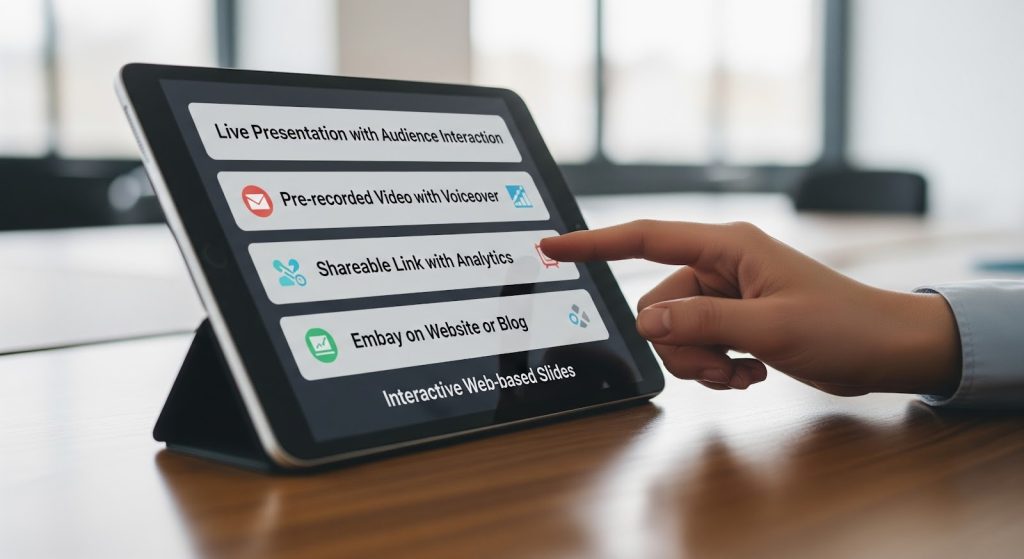
There are three main approaches, and one of them is usually best depending on your situation.
Option A: Share a single window (best for most people)
Instead of sharing your entire screen, share only the PowerPoint window, Keynote window, or browser tab with your slides.
Why it’s better:
- Less visual clutter
- Less accidental “oops I opened the wrong tab”
- Often smoother performance
When to choose it:
- You’re presenting normally
- You want reliability
- You want to keep notes/private stuff hidden
Option B: Share a browser tab (best for Google Slides or web-based decks)
If your deck is in Google Slides or a web viewer, share that specific tab.
Why it’s great:
- Many platforms optimize tab sharing well
- You can often toggle “share tab audio” if needed
When to choose it:
- Your deck is online
- You’re doing a quick, lightweight presentation
Option C: Share the whole screen (only when you must)
Whole-screen sharing is the “big hammer.” It’s useful when you need to switch between slides, demos, and other windows.
Why it can cause issues:
- More pixels changing = more encoding = more lag
- You’re more likely to accidentally show notifications or private stuff
When to choose it:
- You’re doing a live demo + slides
- You’re teaching and jumping between resources
If you can avoid whole-screen sharing, do it.
Step 2: Present slides in a format that’s easy to stream
This is the part most people skip: your slide deck might be heavy.
You don’t need to “dumb it down.” You just need to make it stream-friendly.
Keep animations minimal
A few subtle transitions are fine. But heavy animations force constant motion on screen, which increases encoding load and makes lag more noticeable.
Rule of thumb:
- Use simple fades
- Avoid wild transitions and moving elements unless absolutely necessary
Compress huge images
A single slide with an 8000px image is basically a stress test.
If you’re on PowerPoint:
- Export images at reasonable resolution before inserting
- Use built-in compression settings if available
If you’re on Google Slides:
- Resize images before upload
- Don’t drag in massive original photos straight from your phone
Avoid embedded videos if you can
Videos inside slides are cool… until you’re screen sharing and the frame rate collapses.
Better approach:
- Keep the video as a separate file or link
- Open it in a browser tab
- Share that tab with “share tab audio” if needed
Use fewer fonts, fewer effects
Custom fonts can render weirdly across platforms. Effects can add load. Keep it clean.
Consider exporting as PDF for super-stable presenting
If your deck is mostly visuals and text, exporting to PDF can be ridiculously smooth.
Bonus:
- No animations = fewer performance surprises
- Page turning in PDF is often lighter than slideshow mode
Downside:
- You lose presenter animations, and it’s less “dynamic”
Still, for many calls? PDF is the secret weapon.
Step 3: Use the right presentation mode for your platform
Different platforms handle screen sharing differently. These tips apply almost everywhere, but they’re especially useful on Zoom/Meet/Teams.
Zoom
- Prefer “Share Window” (PowerPoint window) for stability
- If showing video, use the “Optimize for video clip” option (only when needed)
- If your audience says it’s blurry, stop share and re-share the correct window
Google Meet
- “A tab” is often smoother than “Your entire screen”
- Keep your deck in a dedicated Chrome tab
- Close other heavy Chrome tabs (Chrome is powerful, but it’s a hungry beast)
Microsoft Teams
- Share the specific window
- Consider turning off incoming video temporarily if your computer struggles
- Teams can be heavy; give it fewer background apps to fight with
Discord (and casual calls)
- Lower your stream resolution if it’s stuttering
- Share a window, not the entire screen, unless you’re demoing something
Step 4: The “two-device trick” (when you want zero stress)
If you ever watch someone present and it feels oddly smooth, there’s a good chance they’re using a two-device setup.
Here’s how it works:
- Device 1: runs the call (camera + mic)
- Device 2: shares slides (or you just screen share device 2)
Why this is amazing:
- Your call device isn’t overloaded by screen encoding
- Even a basic laptop can handle a call smoothly when it’s not sharing slides too
Easy version:
- Join the call on your laptop as the presenter
- Join on your phone/tablet as a “viewer”
- Present slides from one device, talk from the other
If you do this, mute one device and turn its speaker off to avoid echo.
Step 5: Make slides readable in a video chat (the “it’s blurry” problem)
A deck that looks great in a room can look unreadable on video.
Here’s what makes slides readable on calls:
Use bigger text than you think
If it’s under 24pt, it’s probably too small for at least some people.
Safe range:
- Headings: 36–48pt
- Body: 24–32pt
High contrast wins
Light gray text on a white background might look “modern,” but in a compressed screen share it becomes invisible.
Make it obvious:
- Dark text on light background, or light text on dark background
- Avoid thin font weights
Don’t cram
A crowded slide looks like chaos on a shared screen.
Try:
- One main idea per slide
- Fewer bullets, more breathing room
Use “callout” boxes for the important bits
If you want attention on one metric, make it big and put it in a clear box. Video compression loves simple shapes.
Step 6: Avoid the awkwardness while you present (the human side)
Lag isn’t just technical. It’s social.
The most awkward moment isn’t the lag itself , it’s when you pretend it’s not happening and keep talking while nobody can follow.
Here’s how to keep it smooth:
Do a quick “can you see this clearly?” check early
Within the first 30 seconds of sharing, ask:
“Quick check , is the slide text readable on your end?”
This saves you from doing a full presentation while people squint politely.
Use verbal signposting
Say what’s on screen:
“Top left is the main metric, bottom right is the trend line.”
If someone’s stream is blurry, your voice fills in the gaps.
Build in tiny pauses
When you change slides, pause one beat.
It helps lag catch up and makes you sound more confident, not rushed.
Step 7: The best settings for smoother sharing (without turning your call into a potato)
If screen sharing makes everything stutter, don’t panic. Make one of these trade-offs:
Trade-off A: Reduce your camera quality (keeps slides smoother)
If your platform allows it, lower your outgoing camera resolution or turn off HD.
People would rather see clear slides than your pores in 4K.
Trade-off B: Turn off incoming video temporarily
This is underrated. If your device is struggling, turning off incoming videos can free up resources.
Trade-off C: Reduce share resolution / frame rate
Some platforms let you adjust stream quality. Lowering it slightly can remove stutter entirely.
Step 8: Troubleshooting when it’s already lagging mid-call
Let’s say you’re already presenting and it starts lagging. Here’s the emergency routine.
1) Stop share, then re-share the right way
Re-sharing often resets the stream quality.
When you re-share:
- Choose “window” instead of “screen”
- Choose “tab” instead of “screen” if you’re in a browser
2) Close the one app that’s secretly murdering performance
Common culprits:
- Dropbox/Drive uploading
- A browser tab with video running
- A screen recorder
- A “helper” app you forgot was open
3) Switch Wi-Fi bands or move closer to the router
If you can move two meters closer, do it. It’s not glamorous. It works.
4) Use the PDF backup
Keep a PDF export ready. If PowerPoint slideshow starts lagging, open the PDF and present from that.
Your audience won’t care that it’s PDF. They’ll care that it’s readable.
5) If it’s a casual chat, simplify your approach
If you’re showing slides during a casual browser-based chat (like when you’re sharing a mini deck as a fun icebreaker), you don’t need cinematic transitions.
If you’re bouncing between random chats and want to keep it simple, you can keep a “light” deck ready and just share it quickly. I’ve even used platforms like this video chat site for casual conversations where a quick screen share is enough , the key is keeping the slides lightweight so the share doesn’t stutter the moment you meet someone interesting.
Step 9: Make your slide-sharing workflow fast (so you don’t fumble)
A lot of awkwardness comes from fumbling windows while everyone watches.
Here’s a clean workflow that feels confident:
Before the call
- Put your deck in its own window/tab
- Close unrelated tabs
- Turn on “Do Not Disturb” to block pop-up notifications
- Have a PDF backup ready (seriously)
During the call
- Start share
- Ask “Is this readable?”
- Use presenter view only if you’re comfortable with it
- Avoid switching between 12 windows unless necessary
After the call
If people said the deck was blurry, adjust:
- Bigger fonts
- Higher contrast
- Less clutter
Then you’re good for next time.
A fun twist: slides don’t have to be “corporate”
If you’re writing for a blog audience, you can make this topic more interesting by talking about real-life use cases that aren’t just “work meeting.”
Here are a few ways people actually use slides on video chat:
- A mini travel plan deck for friends (“here’s the itinerary, don’t judge me”)
- A “top 10” deck for game night or debates
- A portfolio deck for quick freelance chats
- A study summary deck for group revision
- A tiny “about me” deck as a conversation starter
And if someone wants more of that classic random video chat vibe, there are plenty of places to practice casual presenting too. I’ve seen people use an alternative video chat link to test quick screen-share demos, practice speaking on camera, or just get comfortable showing visuals without turning it into a formal presentation.
The real secret: your audience forgives a lot if you’re prepared
Here’s what I’ve learned: people don’t expect perfection. They expect clarity.
If your slides are readable, your screen share is stable, and you don’t panic when something hiccups, you already look like a pro. Lag becomes a small glitch, not a vibe killer.
Quick recap: the smoothest way to show slides without awkward lag
If you only remember a few things, remember these:
- Share a window or a tab, not your whole screen (most of the time)
- Keep the deck lightweight: fewer animations, compressed images, avoid embedded video
- Make text big and high-contrast so it’s readable through screen-share compression
- Close background apps and pause sync/downloads
- Have a PDF backup ready for instant “no drama” presenting
- If your device struggles, use trade-offs: lower camera quality, reduce incoming video, or lower stream resolution
Do that, and your slide sharing will feel less like “help, I’m buffering” and more like “okay, this is actually smooth.”