
How to Download Slides, PDFs, and Video Tutorials for Offline Learning
Learning online is fun and convenient. Platforms like Slideshare, educational websites, and YouTube provide a huge amount of knowledge through slides, PDFs, and video tutorials. But sometimes, you cannot access the internet, or you want to keep these resources for future use.
That’s why downloading them for offline learning is helpful. In this guide, we will show you step by step how to download slides, PDFs, and videos safely and organize them so you can learn anytime, anywhere.
Why Downloading Learning Materials is Important
Downloading slides, PDFs, and videos has many benefits:
- Learn anytime, anywhere – even without the internet.
- Focus better – avoid online distractions like ads or notifications.
- Save time – quickly access materials without searching again.
- Create your personal library – store all useful resources in one place.
- Prepare for exams or projects – offline resources help you review anytime.
Step 1: Identify the Resources You Need
Before downloading, make a list of what you want:
- Slides – from Slideshare or educational websites.
- PDFs – study guides, e-books, or research papers.
- Video Tutorials – YouTube lessons or educational webinars.
Tip: Make a folder on your computer or cloud storage for each type of resource. This will help you organize your downloads from the start.
Step 2: How to Download Slides and PDFs
A. Downloading Slides from Slideshare
Slideshare is popular for sharing presentations. Here’s how to download:
- Open the Slideshare presentation you want.
- Look for the Download button. If available, click it.
- If the download is restricted, use safe online tools like Free Slideshare Downloader to convert the presentation into PPT or PDF.
Tips:
- Only download presentations that are publicly available.
- Save the file in a folder labeled by topic, like Marketing or Technology.
B. Downloading PDFs
PDFs are often used for research papers, study guides, and e-books. To download them:
- Open the PDF in your browser.
- Right-click and select Save As to download to your computer.
- If direct download is not available, check if the site offers a PDF download option or use a safe online PDF downloader.
Tips:
- Name files clearly, like Python_Basics_2025.pdf.
- Keep PDFs in folders based on subject or topic for easier access.
Step 3: How to Download Video Tutorials
Video tutorials are great for visual learning. Here’s how to download them:
A. YouTube Videos
- Copy the video URL from YouTube.
- Use a reliable online YouTube downloader to convert the video into MP4 or MP3.
- Choose a video quality that fits your device storage.
Tips:
- Always use trusted tools to avoid malware.
- For audio learning, converting video to MP3 can save storage.
B. Other Educational Platforms
Some websites provide official download options for videos:
- Check if the video has a Download button.
- Use offline learning features in apps if available (like YouTube Premium or Coursera offline).
Step 4: Organize Your Downloads
After downloading, organizing your files will save a lot of time later.
- Create a folder structure like this:
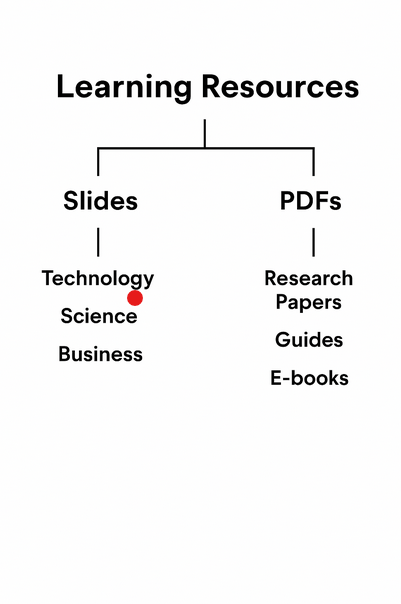
- Use clear file names: Python_Tutorial_2025.mp4, Marketing_Slides_2025.pdf.
- Group files by topic to quickly find what you need.
Tips:
- Use cloud storage like Google Drive or Dropbox for backup.
- You can access your files from any device anytime.
Step 5: Convert and Compress Files
Some downloaded files may be too large or in different formats.
- Videos: Convert to MP4 or MP3 for compatibility and space-saving.
- Slides/PDFs: Merge multiple PDFs or convert PPT to PDF for easier storage.
- Audio: Convert video tutorials to MP3 to listen on the go.
Tools: Free Slideshare Downloader, video converters, and PDF tools can help you do this efficiently.
Step 6: Keep a Reference System
If you have a large collection, a reference system helps:
- Spreadsheet: Track File Name | Type | Topic | Source | Date.
- Digital note apps: Use Notion, OneNote, or Evernote to catalog files.
- Tags: Tag files by topic or difficulty to find them faster.
Tip: Update your reference list whenever you download new resources.
Step 7: Backup and Security
Keep your offline learning library safe:
- Cloud Backup: Store files on Google Drive, OneDrive, or Dropbox.
- Password Protection: Protect sensitive PDFs or videos.
- Regular Checks: Make sure files are not corrupted and update backups regularly.
Step 8: Tips for Efficient Offline Learning
- Prioritize Key Resources: Don’t download everything; focus on what you need.
- Schedule Study Time: Use your offline library to plan your learning.
- Annotate PDFs and Slides: Highlight important points or take notes.
- Keep Updated: Occasionally check online for new or updated content.
Conclusion
Downloading slides, PDFs, and video tutorials for offline learning is an excellent way to improve productivity and study effectively. By following these steps identifying resources, downloading safely, organizing files, converting formats, and keeping a reference system, you can create your personal digital library. Backup your files, keep them organized, and make offline learning a smooth and enjoyable experience.
Pro Tip: Tools like Free Slideshare Downloader and online video converters can save time and help you manage your downloads efficiently. Start building your offline learning library today and enjoy uninterrupted learning anytime, anywhere!